Spending hours listening to a long audio recording to find one specific quote is incredibly frustrating. Whether you are dealing with a two-hour interview or a team meeting, replaying full files from start to finish to locate specific information drains your time. This tedious process slows down your productivity, which is why audio transcription has become so important in modern life.
Converting voice recordings into written text is a simple way to keep your project notes organized. Having a clear document allows you to search for keywords instantly and copy important details into your files within seconds. This article introduces several free methods to handle your recordings. You can choose the best method based on your requirements for transcription speed and time.
Types of Audio Transcription: Choosing the Right Format
Before choosing a method, you need to decide which text format you actually need. Picking the wrong type can waste your budget or cause data loss. Generally, professionals split these formats into two categories.
The first type is Full Verbatim Transcription. This format requires writing down every single word exactly as spoken. It includes all filler words like “um” and “ah,” verbal mistakes, and even background noises like laughter or coughing. Because it requires extreme attention to detail, this option usually costs 30% to 50% more. It is mainly used in strict scenarios, such as legal evidence or academic research.
The second type is Clean Read Transcription. This format removes all meaningless filler words, repetitions, and accidental mistakes. The final text only keeps the core message, making it smooth and easy to read. For everyday needs like business meeting notes, social media content, or online course subtitles, choosing a clean read is the most efficient and cost-effective decision.
Transcribe Audio to Text Manually
If you only have a short audio clip or your recording contains sensitive business information, manual typing is a secure approach. The primary advantage of this method is complete data privacy, as your files never leave your local device or are uploaded to external servers. However, this traditional workflow takes significant time and effort, relying entirely on your typing speed with no automated help.
Converting audio to text manually can be a slow and tiring task. Most people take about 4 to 5 times longer than the actual audio file to finish. This means a 10-minute meeting recording can easily require nearly an hour of focused typing and continuous keyboard work. Because of the massive workload, this method is best suited for people who only need to transcribe short clips or brief videos.
Step-by-Step Guide: How to Manually Transcribe an Audio
If you decide that pure manual transcription is the best fit for your current project, you can start by following these steps after making proper preparations.
Step 1: Choose a quiet room, open your media player and a blank text editor, and arrange the two windows side-by-side on your screen for easy viewing.
Step 2: Slow down the audio playback speed to 0.75x or 0.5x in your media player settings to give your typing enough time to keep up with the spoken words.
Step 3: Listen to the audio sentence by sentence, use hotkeys to pause the playback at natural breaks, and type out the words while using placeholders for unclear terms.
Step 4: Replay the entire recording from the beginning to check your text draft, fix minor typos, fill in missing words, and finalize your text document.
Use the Dictation Tool in Microsoft Word: A Smart Free Alternative
Since manual typing requires significant time and effort, using free transcription tools is a practical efficiency strategy. If you don’t want to download any third-party software, Microsoft Word’s built-in Dictation tool offers a zero-cost alternative. Powered by Microsoft’s cloud-based speech recognition, this feature captures audio in your computer and converts it into text directly on your active document.
However, the accuracy of this tool heavily depends on your environment. If your audio file contains background noise or your room is not quiet, the microphone may cause transcription errors. Additionally, this feature requires a continuous internet connection to process voice data. Therefore, it is best suited for budget-conscious creators or professionals working in quiet spaces with clear recordings.
How to Transcribe Audio to Text with Microsoft Word
If you already have Microsoft Word installed on your computer and possess a clear audio recording, you can follow these four straightforward steps to transcribe your audio to text.
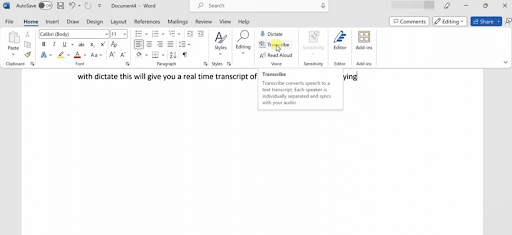
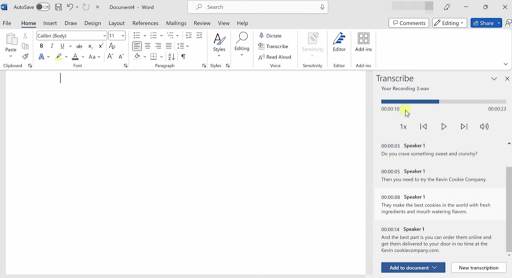
Step 1: Open Microsoft Word and create a new blank document. Then go to Home>Transcribe.
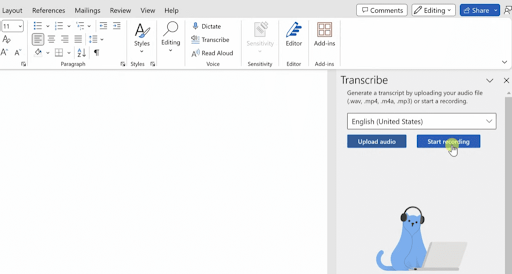
Step 2: Choose your language. You can then choose to upload your existing audio file or start a new recording. In this guide, we will use Start Recording as an example.
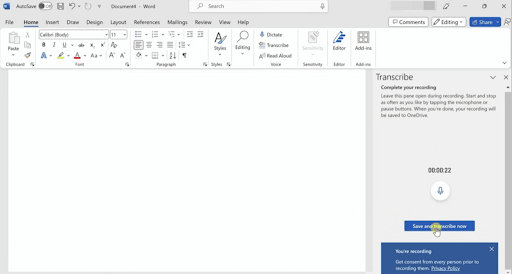
Step 3: Once you finish recording, click the Save and transcribe now button.
Step 4: After the transcription is complete, you can edit your transcript right here. Microsoft Word will automatically save the text into a file for you.
The Best Free Transcription Audio-to-Text Tool
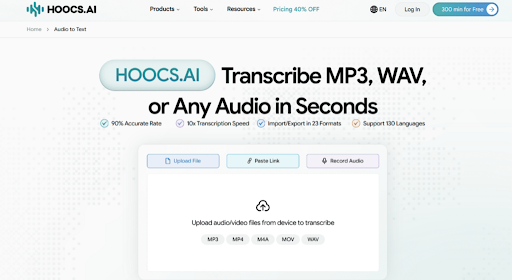
After enduring the inefficiency of manual transcription and the strict environmental demands of built-in tools, finding a solution that balances cost and speed is essential. Among the various options, Hoocs.ai stands out with its rapid processing and exceptional recognition accuracy. It serves as a lightweight, fully web-based AI transcription platform that requires no software installation.
Beyond standard speech-to-text conversion, Hoocs.ai features powerful built-in AI summarization. It instantly condenses lengthy, complex audio transcripts into core key points or clean mind maps. This smart capability makes it perfect for business professionals, journalists, creators, and students, saving hours on manual content distillation and effortlessly highlighting critical insights.
Core Features of Hoocs.ai:
- Exceptional accuracy rates deliver highly reliable transcription results
- 10x faster transcription speed processes hours of long recordings within minutes
- Extensive language support covers over 130 languages
- Generous free credits provide 300 minutes for new accounts
- Smart AI summaries automatically extract key insights and notes
Step-by-Step Guide: How to Transcribe an Audio with an AI Tool
If you want to try transcribing an audio file using this AI tool right now, follow these few simple steps to generate your automated transcript in just a few minutes.
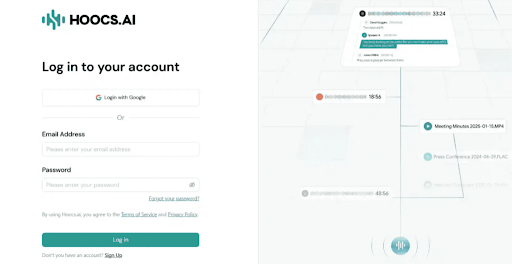
Step 1: Go to the Hoocs.ai official website and create an account. Click Log in and start with the free tier.
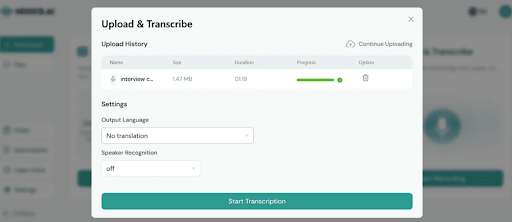
Step 2: After logging in, click Upload Files and choose an audio file from your computer.
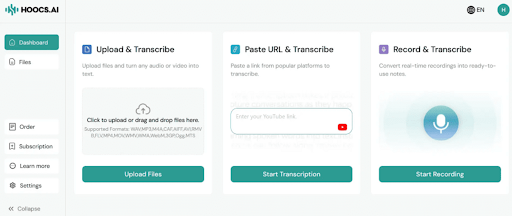
Step 3: After uploading the file, configure the settings such as translation and speaker recognition. Then click Start Transcription.
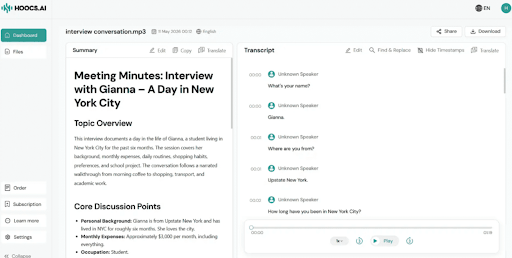
Step 4: After the transcription is completed, you can view the summary and edit the transcript in the editor. Then you can download the transcribed file in your preferred format or share it via a link.
FAQ About Audio Transcription
Can I Transcribe an Audio File for Free?
Yes, you can choose from three zero-cost solutions depending on your specific needs. For a permanent free option, Microsoft Word’s built-in tool is ideal. If your recording contains sensitive corporate data, offline manual typing remains the most secure free alternative. For efficiency-focused users, Hoocs.ai, which provides a 300-minute free trial with AI summarization, is an ideal choice.
How Long Does It Take to Transcribe 2 Hours of Audio?
The turnaround time depends entirely on your chosen method. Manual transcription takes 4 to 5 times the audio’s length, requiring roughly 8 to 10 hours of typing. Microsoft Word’s dictation feature necessitates playing the recording in full, fixing the processing time at exactly 2 hours. Hoocs.ai runs on a 10x faster engine, generating a complete text draft within minutes.
Conclusion
Audio transcription has become an essential part of modern digital workflows rather than a niche skill. It has become a practical productivity ability that benefits many users. Turning spoken recordings into structured text helps media professionals, office teams, and students manage information more effectively and improve their daily workflows.
While manual transcription can still be useful in cases that require very high accuracy, AI-powered tools are now the more practical option for most everyday scenarios. They significantly reduce processing time and make it easier to handle large volumes of audio without extra effort. Adding an automated transcription tool to your daily routine is an excellent way to increase personal productivity.