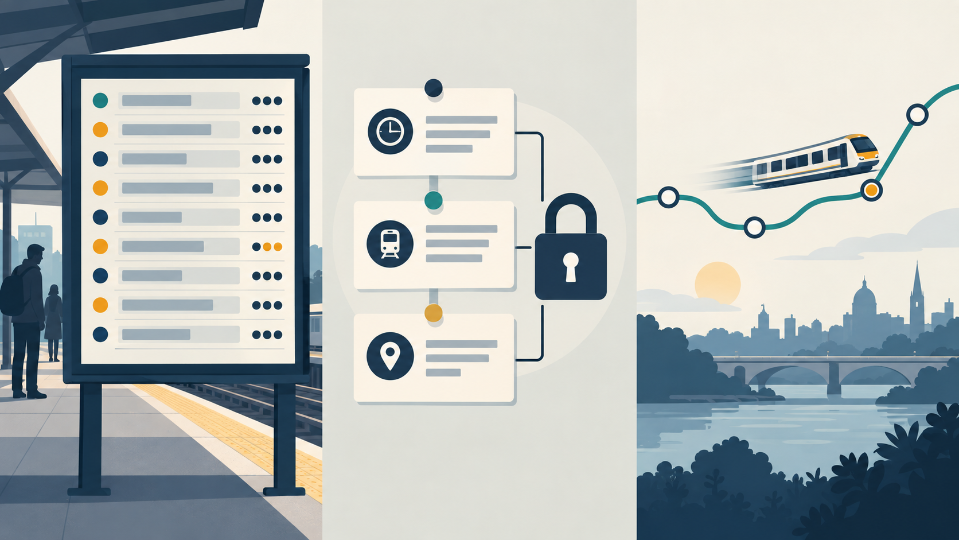
A service-update video can look clear while giving a commuter the wrong answer. A train icon glides past three stations, a clock graphic advances, and a replacement bus appears at the end of the route. Unless each visual event is tied to the published timetable, viewers may read decoration as a promise about departure time, stopping pattern or destination.
Build the update from two separate layers. Times, dates, station names and endpoints belong to a fixed fact layer copied from the operator’s current notice. Motion belongs to an explanation layer that shows direction or sequence without changing those facts. An AI video editor can help create that supporting motion, but the notice remains the authority.
AIVideoEditor.me supports prompt-led and source-led video routes. Use that flexibility to make the change easier to see, not to infer missing service details.
Separate The Published Schedule From The Motion Brief
Start with the latest official notice and extract only the details a passenger can act on: affected date, operating window, origin, destination, skipped stops, replacement service and any stated uncertainty. Put each fact in a small source table with the notice URL and the time it was checked.
Leave Unconfirmed Platforms And Connections Clearly Unspecified
A notice may confirm disruption without specifying a platform, exact delay or final connection. Do not let the storyboard fill those gaps. Write “not stated” in the working table, and either omit the detail or tell viewers where to check it live.
Relative phrases need special care. “This evening” or “until further notice” can expire quickly. Convert them into a dated production note, but do not publish a precise end time unless the operator provides one. Schedule a final source check immediately before export and retain the notice version used for that comparison.
Give The Animation A Narrow Job. The motion brief should answer one explanatory question, such as which segment is affected or where passengers transfer. It should not simulate live vehicle position, frequency or journey duration. A moving icon shows route direction only when the caption says so and the pacing avoids suggesting real time.
Build A Neutral Sequence Around One Change
Choose a sequence that a viewer can understand even if the decorative style is removed. Show the normal route, identify the affected segment, then show the alternative action. Keep the camera stable and use one transition for each logical step. Fast zooms and pulsing alerts can make a minor amendment look like an emergency.
AIVideoEditor.me can generate environmental or diagram-like motion from a reference frame. Prepare a source frame with a simple route shape and enough blank space for editable labels. Ask for a single movement, such as one line being highlighted from left to right, while station order and geometry remain fixed.
Avoid The Accidental Countdown. Clocks, progress bars and vehicles moving between stops imply elapsed time. Use them only if their timing comes from verified data and the video will be updated when that data changes. For a static service notice, a step marker or directional arrow is usually safer.
Keep Alternate Routes Visually Honest. If the notice lists several options, do not animate one as the preferred or fastest choice without evidence. Give each option the same visual weight, or explain the selection rule in editable text. Walking distance, accessibility and connection reliability may differ even when two routes reach the same endpoint.
Place Exact Travel Facts In Editable Overlays
Generated frames are a poor place for exact station spellings, times and service codes. Add those after the motion is approved, using the publisher’s editing layer. This lets a producer correct one departure or date without regenerating the scene and risking a new visual error.
| Element | Source | Production rule |
| Times and dates | Current operator notice | Editable overlay only |
| Station order | Published route information | Lock before generation |
| Direction arrow | Storyboard | Illustrative, not live tracking |
| Vehicle position | Live data if available | Omit from static notice |
| Background scenery | Creative brief | No operational claim |
When teams edit videos online, keep the source table beside the timeline. Reviewers should be able to point from every visible fact to one row. If a detail has no source row, remove it or label it clearly as illustration.
Use A Fact Lock Before Styling
Have one person confirm spelling, sequence and timing before colors or motion are reviewed. Freeze those elements in the storyboard. A later visual revision may change emphasis, but it should not silently move a station, swap an endpoint or shorten the announced operating window.
Test The Update With Sound Turned Off
Many passengers will encounter the video muted. Watch the export without narration and write down the trip a viewer appears to be promised. Compare that sentence with the official notice. If the animation implies uninterrupted service, a specific journey time or a guaranteed connection, revise it.
Check The First And Last Frames
Social platforms may show either frame as a thumbnail. The first frame should identify the affected service without displaying an obsolete time. The last should state the passenger action and where to verify live information. Neither frame should depend on a moving object to correct its meaning.
Run the same check on a small phone screen. A thin route branch can disappear, making an alternative look like a through service. Increase separation or simplify the route rather than relying on tiny footnotes. The useful test is whether a hurried passenger can identify the affected segment without guessing.
Ask a second reviewer to describe the required passenger action without seeing the production brief. Their answer should include the same affected segment, date and next step as the source notice. If they infer an extra stop, a guaranteed transfer or a live vehicle position, trace that inference to the frame that caused it and simplify the frame before release.
Review The Update At Publication Time. Open the source notice again before release. Compare every overlay character by character and record the check time. If the service has changed, update the editable layer and repeat the mute test. Do not reuse an older AIVideoEditor.me export merely because its motion still looks polished.
Publish An Actionable Update Without Inventing A Journey
AIVideoEditor.me is useful when a transport editor has verified facts and needs a restrained visual explanation. It cannot decide whether an unstated connection will wait or whether a delay estimate remains current.
Archive the notice snapshot, fact table, storyboard, final overlays and check time together. Add an expiry or review point to the publishing plan. If the video stays online after the affected window, mark it as historical or remove it from active service channels.
Fixed facts and moving context make a clean division of labor. The timetable tells passengers what is scheduled. The animation helps them see what changed. Keeping those layers separate produces a useful update without turning an illustrative train into evidence that a real one will arrive.