Reliable communication apps help Windows users manage work messages, files and daily collaboration more smoothly.
Modern work depends on communication. Even when a team has good documents, strong software, and clear goals, daily work can slow down if people cannot exchange information efficiently. Messages, files, meeting notes, project updates, and quick decisions all move through communication tools.
For Windows users, reliable communication apps are especially important. Many people still complete their core tasks on desktop or laptop computers. They write reports, manage spreadsheets, review PDFs, send files, attend meetings, and coordinate with colleagues from the same device. If communication apps are unstable, hard to organize, or downloaded from unsafe sources, the entire workflow becomes weaker.
This is why Windows users should think carefully about the communication tools they use for daily work. The best tools are not only fast. They should also be reliable, easy to manage, suitable for desktop use, and installed from sources that users can trust.
Communication Is Part of Productivity
Productivity is often discussed in terms of documents, schedules, and task lists. But communication is what connects those pieces together. A document may explain a project, but a message tells someone what changed. A spreadsheet may show progress, but a quick update helps the team understand what to do next.
When communication is clear, people spend less time asking repeated questions. When it is unclear, work becomes scattered. Important updates may be missed, files may be shared in the wrong place, and team members may not know which version of a plan is current.
Good communication tools help users:
· Share updates quickly.
· Organize conversations by team, project or topic.
· Send and receive files more easily.
· Keep track of decisions and follow-up tasks.
· Reduce confusion between remote and office-based workers.
Why Windows Still Matters in Daily Communication
Many people use mobile apps for quick messages, but Windows remains a practical environment for work communication. A desktop screen makes it easier to compare messages with documents, open shared files, type longer replies, and manage several tasks at once.
For example, a remote worker may keep a messaging app open while editing a report. A small business owner may discuss invoices while checking spreadsheets. A student group may coordinate research notes while drafting a presentation. In each case, the communication app supports the main work instead of existing separately from it.
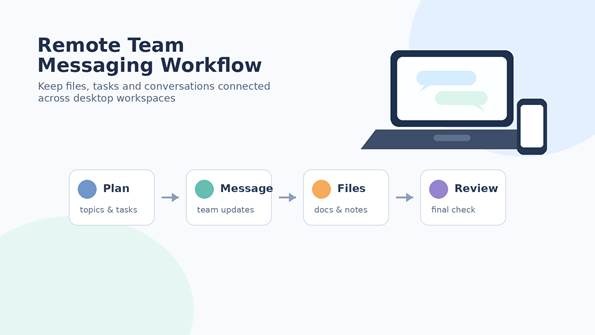
A clear desktop communication workflow helps remote teams connect messages, tasks and shared files.
What Makes a Communication App Reliable?
A reliable communication app should support daily work without creating extra problems. It does not need to be complicated, but it should be stable, understandable, and suitable for the user’s device.
Windows users may want to consider several factors:
· Stable desktop performance.
· Clear message organization.
· Support for group and one-to-one conversations.
· File sharing for documents, images and links.
· Notification controls that do not interrupt focus.
· Basic privacy and account protection options.
· A clear and trustworthy download source.
Reliability is not only about uptime. It also includes how easy the app is to install, update, manage, and trust over time.
Remote Teams Need Better Message Organization
Remote and hybrid work often create communication overload. Team members may work in different locations, time zones, or schedules. Without clear organization, conversations can become difficult to follow. A short message may be missed, a shared file may be buried, or a decision may be forgotten after a busy day.
A better workflow separates conversations by purpose. For example, a team might use one space for announcements, another for project discussion, and another for support or urgent questions. This keeps important messages easier to find and prevents every topic from being mixed together.
Reliable communication apps should make this kind of organization simple. If users have to search endlessly for information, the tool is not supporting productivity well enough.
Safe App Downloads Matter for Communication Tools
Communication apps often connect to contact lists, messages, shared files, and sometimes cloud storage. That makes safe downloading especially important. If users install a modified or unsafe version of a messaging tool, they may put more than one conversation at risk.
Users researching desktop messaging tools may sometimes look for resources such as potato下载 when comparing communication app access points. The important step is to avoid random pages that do not explain the file source, version, or installation process clearly.
Before installing any communication app on Windows, users should check whether the page looks trustworthy, whether the file name is clear, and whether the installer asks for unexpected permissions. They should also avoid cracked versions or unofficial bundles that promise convenience but may create security risks.
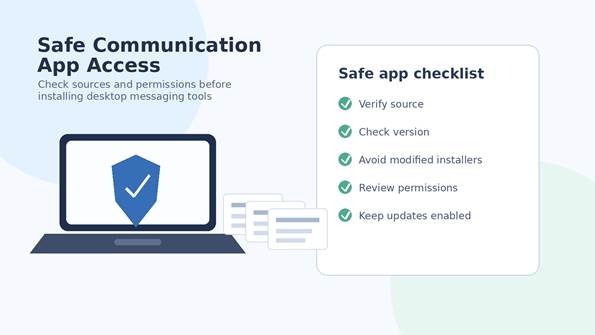
Safe communication app access starts with checking the source, installer and permissions before use.
Managing Files Around Conversations
Work conversations often include files. A team may share a document draft, a spreadsheet, a design file, a PDF, or a screenshot. If files are scattered across many chat threads, users may waste time looking for the latest version.
Windows users can improve this by pairing communication tools with basic file habits. Important files should be saved in organized folders, named clearly, and shared with context. A message that says “updated file attached” is less useful than one that explains what changed and what action is needed.
Good file habits make communication tools more effective. They also reduce the chance of team members using outdated documents.
How Users Can Evaluate Desktop Communication Tools
Different users have different needs. A freelancer may want simple direct messaging. A remote team may need group organization and file sharing. A community manager may care about announcements, member control, and search.
When comparing tools, users can look at practical questions:
· Does the app work smoothly on Windows?
· Can messages be organized by topic or group?
· Can users find old messages and files easily?
· Does the app support safe account settings?
· Is the download source clear?
· Are updates easy to manage?
Some Chinese-speaking users may compare communication tools under names such as potato when exploring messaging options. Regardless of the tool being considered, reliability and safe software access should remain part of the decision.
A Practical Checklist for Windows Users
Before choosing or installing a communication app for daily work, Windows users can follow a simple checklist:
1. Define the purpose of the app: work, community, study, or personal communication.
2. Check whether the app supports desktop use on Windows.
3. Verify the download source before installation.
4. Avoid modified installers and unclear download pages.
5. Review privacy and account protection settings.
6. Create clear spaces for projects, announcements and file sharing.
7. Keep important files organized outside the chat history when needed.
This checklist helps users avoid choosing tools based only on popularity. The better question is whether the tool supports safe and organized daily work.
Final Thoughts
Reliable communication apps are a core part of modern Windows workflows. They help users coordinate tasks, share files, manage remote work, and keep daily conversations organized. But reliability is not only about messaging speed. It also includes safe downloads, stable desktop performance, clear organization, and basic account protection.
For Windows users who rely on communication tools every day, better habits can reduce confusion and improve productivity. Choosing the right app, verifying the source, and building a simple message workflow can make daily work smoother and safer.
FAQ
Why do Windows users need reliable communication apps?
Windows users often manage documents, files, meetings, and messages from the same device. Reliable communication apps help keep these tasks connected.
What should users check before installing a communication app?
They should verify the download source, check the installer name, avoid modified versions, and review permissions during installation.
How can remote teams organize messages better?
Remote teams can separate announcements, project discussions, support questions, and shared files into clear spaces instead of mixing everything together.
Why are file habits important in messaging apps?
Files shared in conversations can be hard to find later. Clear file names, organized folders, and contextual messages help teams avoid confusion.
Is mobile messaging enough for daily work?
Mobile messaging is useful for quick replies, but Windows desktop access often works better for longer messages, file management, and multitasking.